Managing Teams
Add, edit, or remove teams from your league.
If you are managing registration externally or have a mix of cases where some teams register in person and some through hoops.love, you can add, edit, or remove teams.
Adding a Team
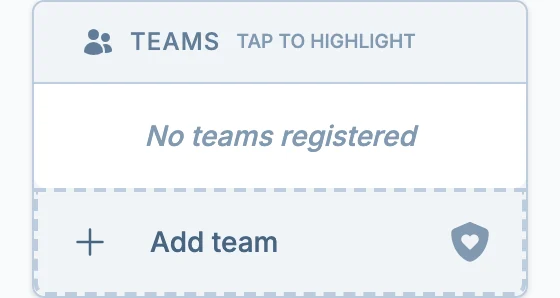
To add a team, locate the "Add team" button at the end of the Teams table:
You will be presented with a dialog that looks like this:
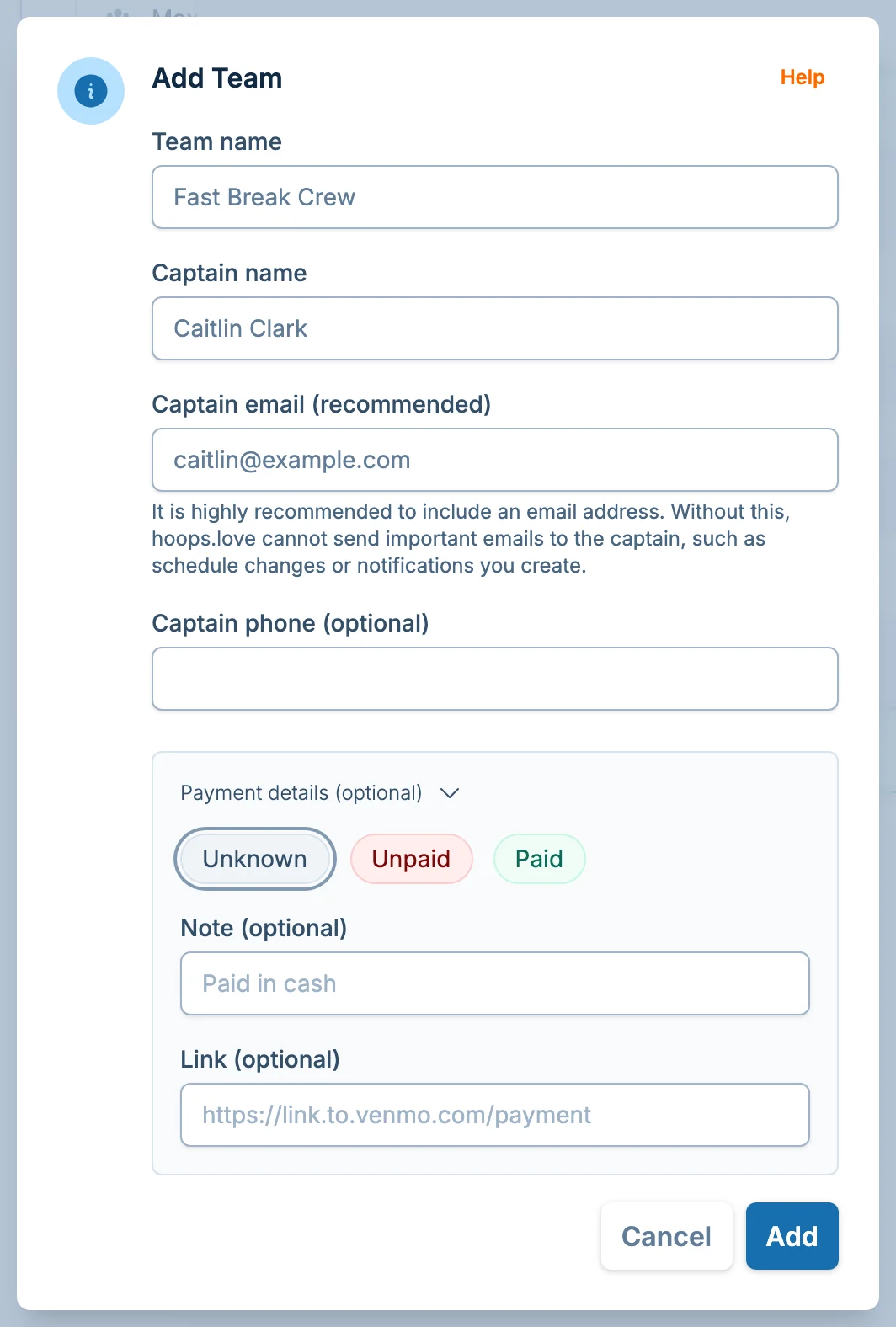
Simply fill in the fields. You can even choose to track payment details for the team, but it's not required.
If a schedule already exists or is under review, the dialog also asks how the new team should affect the schedule:
- Keep schedule as-is — The team is added to your league, but existing games stay unchanged. Use this when you plan to slot the team in manually.
- Create a new schedule — hoops.love creates a new schedule that includes the team. You will review and approve it before it goes live. This counts as a schedule change — see Schedule Change Fees.
It is highly recommended to include the captain's email. hoops.love emails captains for various reasons, documented here.
Without a captain's email, hoops.love cannot email the captain.
Editing a Team
If you wish to change a detail about a team (team number, name, or captain info), you can do so by clicking on the triple-dot menu next to the team name in the teams table and choosing "Edit Details"
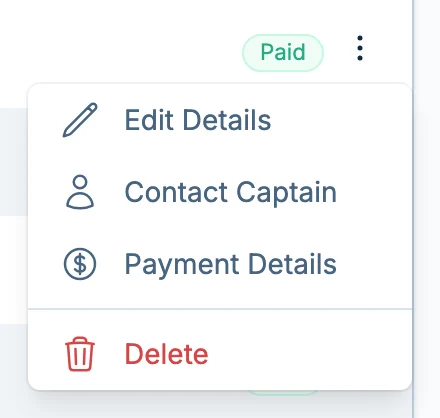
From here you can modify the team number, name, and captain contact information.
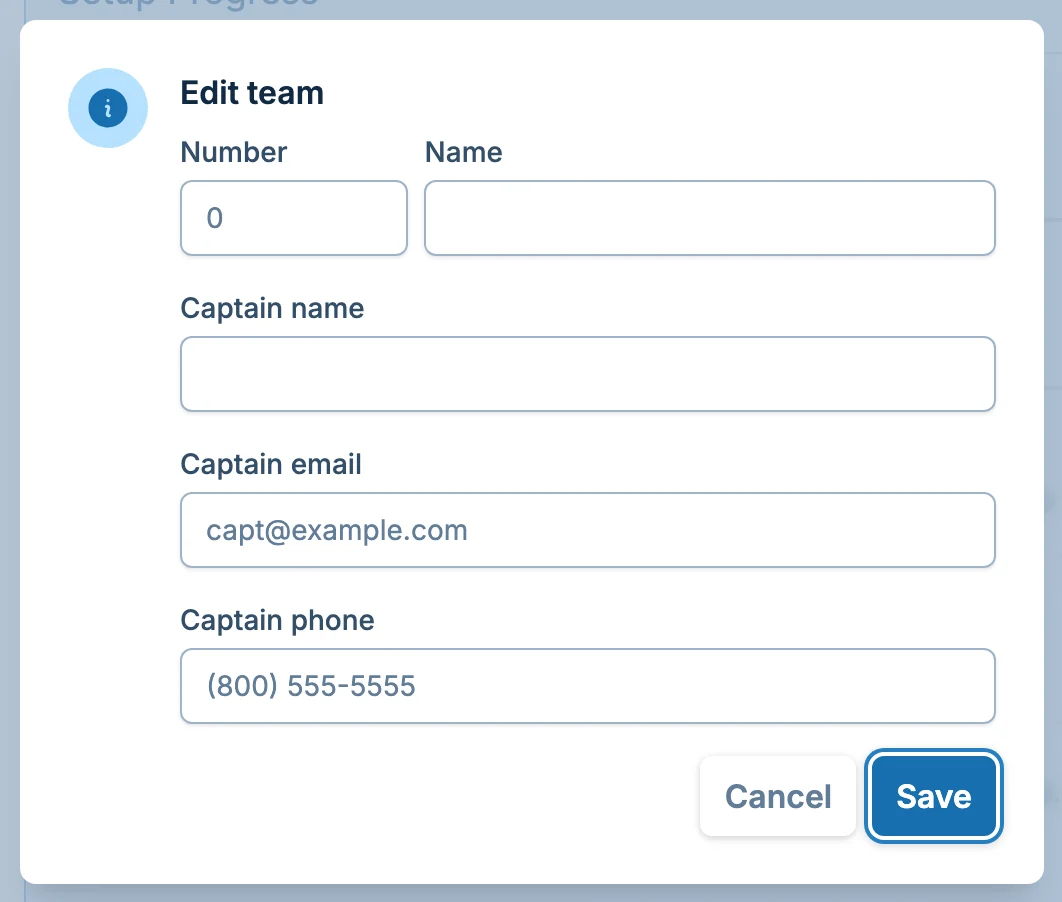
You can edit a team name or number at any time without any negative impact to schedules. It will simply update the team name everywhere. You will not need a new schedule for updating a team name.
Updating Team Payment Details
If you wish, you can use hoops.love to track whether a team has paid their registration fees for the league. This is done automatically if you chose to use in-app payments, which will mark the team as paid when they register.
If you're manually tracking, simply open the team menu and choose "Payment Details"
You will see a form like the following:
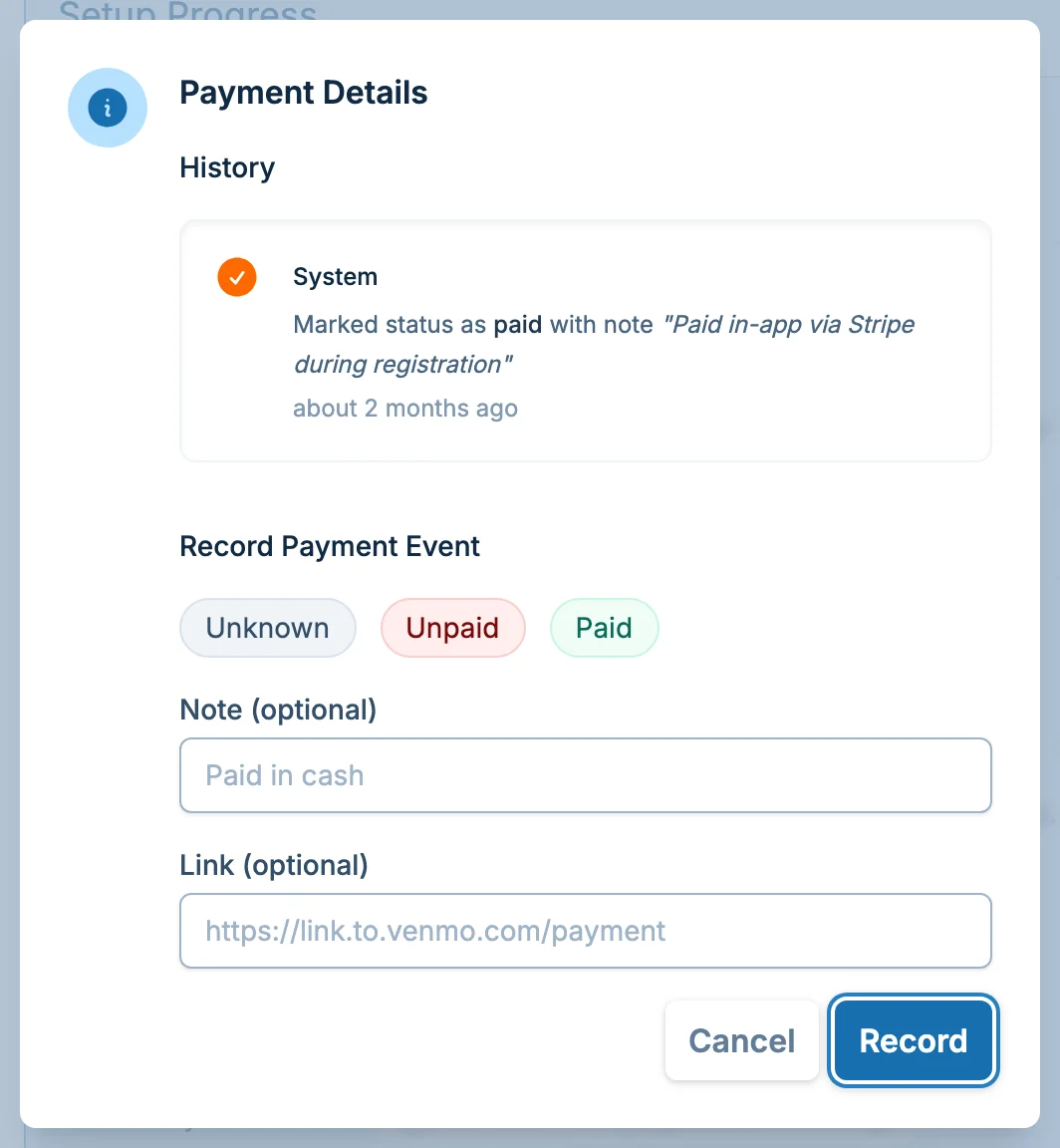
Here you have a history of events and you can record a new one. You can choose between:
- Unknown
- Unpaid
- Paid
You can also optionally include a note or a link to the payment.
This is a tool for your own tracking purposes.
Removing a Team
Before the Schedule
If you need to remove a team before a schedule has been created, you can delete them by choosing the "Delete" option in the team menu.
You will be asked to confirm this action. This permanently removes the team.
After the Schedule (Dropping a Team)
Once a schedule exists, teams cannot be deleted — instead, you can drop them. Open the team menu and choose "Drop Team."
You will be presented with two options:
- Forfeit remaining games — The dropped team forfeits all future games. Opposing teams receive automatic wins. The rest of the schedule stays the same. This option is always free.
- Create a new schedule — Future games are removed and a new schedule is created without the dropped team. Games on nights starting within 24 hours are forfeited. You will review and approve the new schedule before it goes live. This counts as a schedule change — see Schedule Change Fees.
Dropped teams remain visible in standings with their past results preserved. Their name appears with a strikethrough in the teams list and schedule.
If dropping a team opens a spot, you may be able to reopen registration so another team can join. For more details, see Late Registration.
Dropping a team is permanent and cannot be undone. If a team was dropped by mistake, please contact support.
Common Questions
Can captains manage their own rosters?
No. hoops.love registration is team and captain based. Managers can edit team name, team number, captain name, captain email, captain phone, and payment tracking. It does not currently provide a captain-facing roster tool.
Can hoops.love collect waivers?
Not currently. If your league or venue requires waivers, collect them through your usual waiver process outside hoops.love.
Can players RSVP, mark availability, or manage substitutes?
No. hoops.love does not currently collect individual player availability or manage substitutes. Teams should coordinate those details outside hoops.love.